
Quick Answer
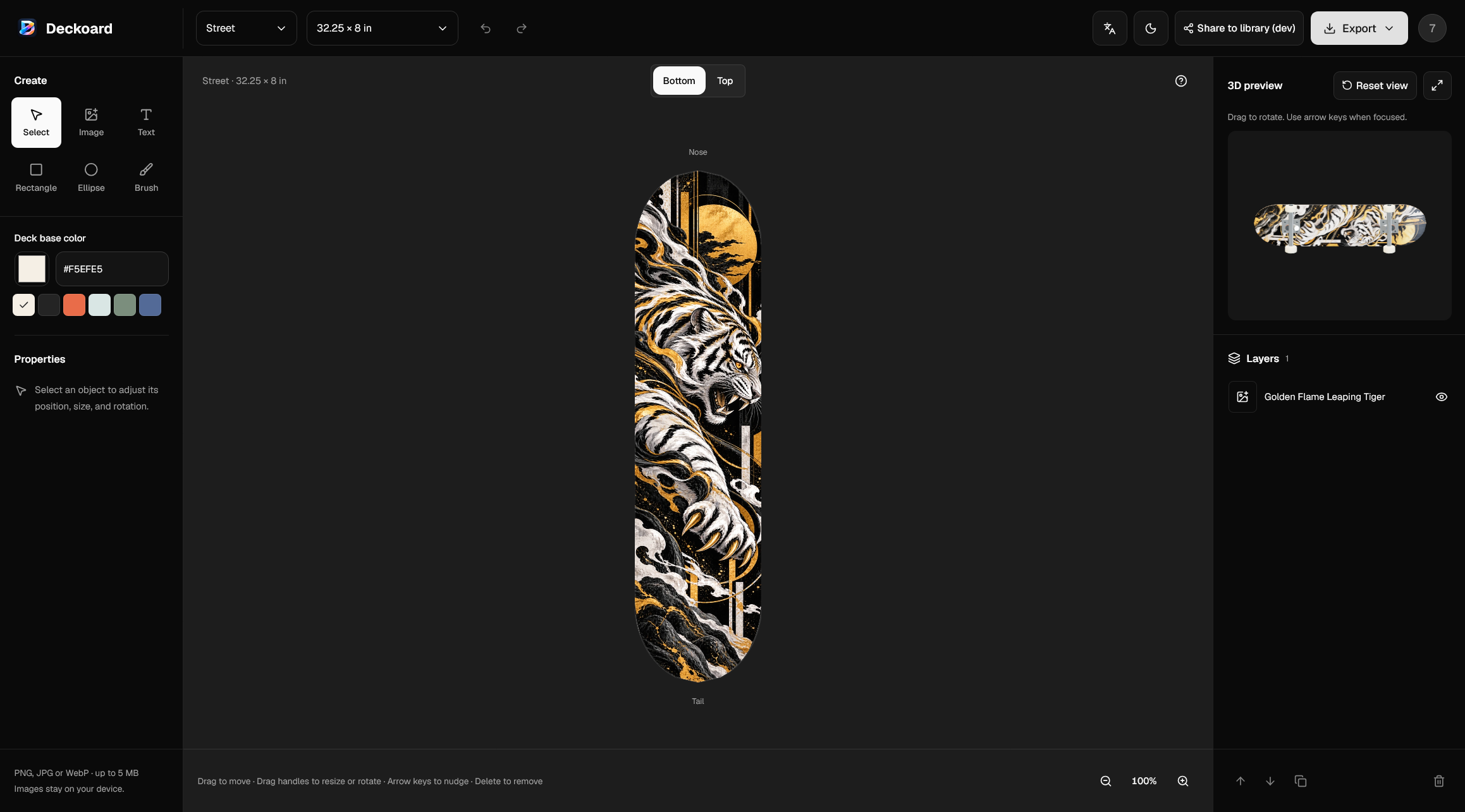
Designing a custom skateboard deck graphic is easier when you can see it wrapped on the board instead of guessing from a flat rectangle. This tutorial walks through Deckoard's browser-based 3D editor: choose a deck, build the artwork in layers, check both faces, and export a screen or print PNG. You can open the editor without an account.
What You Need Before You Start
A modern browser is enough to open the editor. The 3D preview uses WebGL; if it cannot load, the flat canvas remains available.
Artwork support:
- PNG, JPG, or WebP
- up to 5 MB and 24 megapixels per image
- transparent PNG for logos and cutout shapes
Before you draw, confirm the deck size you plan to print and your printer's file requirements. The editor's print export is a starting point, not a factory die-line.
Designs stay in the current page and are not saved; export anything you want to keep before closing the tab.
Why Design Skateboard Deck Graphics Online?
A flat artboard hides the parts of a graphic that bend over the nose, tail, and concave. A 3D deck designer shows those areas while you work, so you can catch an awkward crop before production. That feedback loop is the main reason to try skateboard deck design online.
Deckoard focuses on surface graphics. It does not provide structural CAD or engineering analysis for deck construction or ride performance, so treat it as a graphics tool.
Step 1: Choose a Board Shape and Size
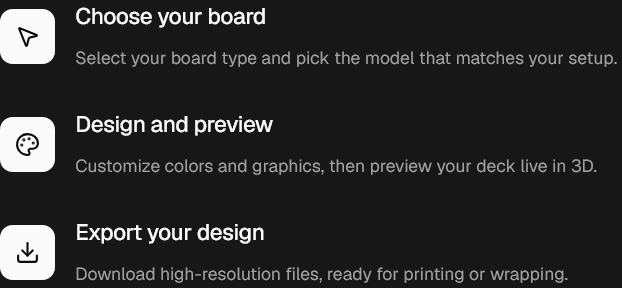
Open the editor from the "Start Designing" button on the homepage. The top bar controls the board shape and size.
- Choose Street, Cruiser, or Longboard.
- Pick one of the two size presets for that shape.
- Check the size shown above the canvas before you start placing artwork.
| Board | Size preset 1 | Size preset 2 |
|---|---|---|
| Street | 32.25 × 8 in | 32.75 × 8.5 in |
| Cruiser | 24.2 × 7.5 in | 29.25 × 7.875 in |
| Longboard | 36.5 × 9 in | 39.3125 × 9.0625 in |
Two behaviors matter. Switching board shape resets the size to that shape's smaller preset, and changing the size preset moves the artwork around the board center without stretching it. Artwork outside the new outline stays in the document, but the PNG export only includes the deck shape.
Choose the shape that matches the deck you will actually print. Longboard deck graphics have more length to fill, while a street deck usually needs a tighter composition.
Step 2: Build the Custom Skateboard Deck Graphics in Layers
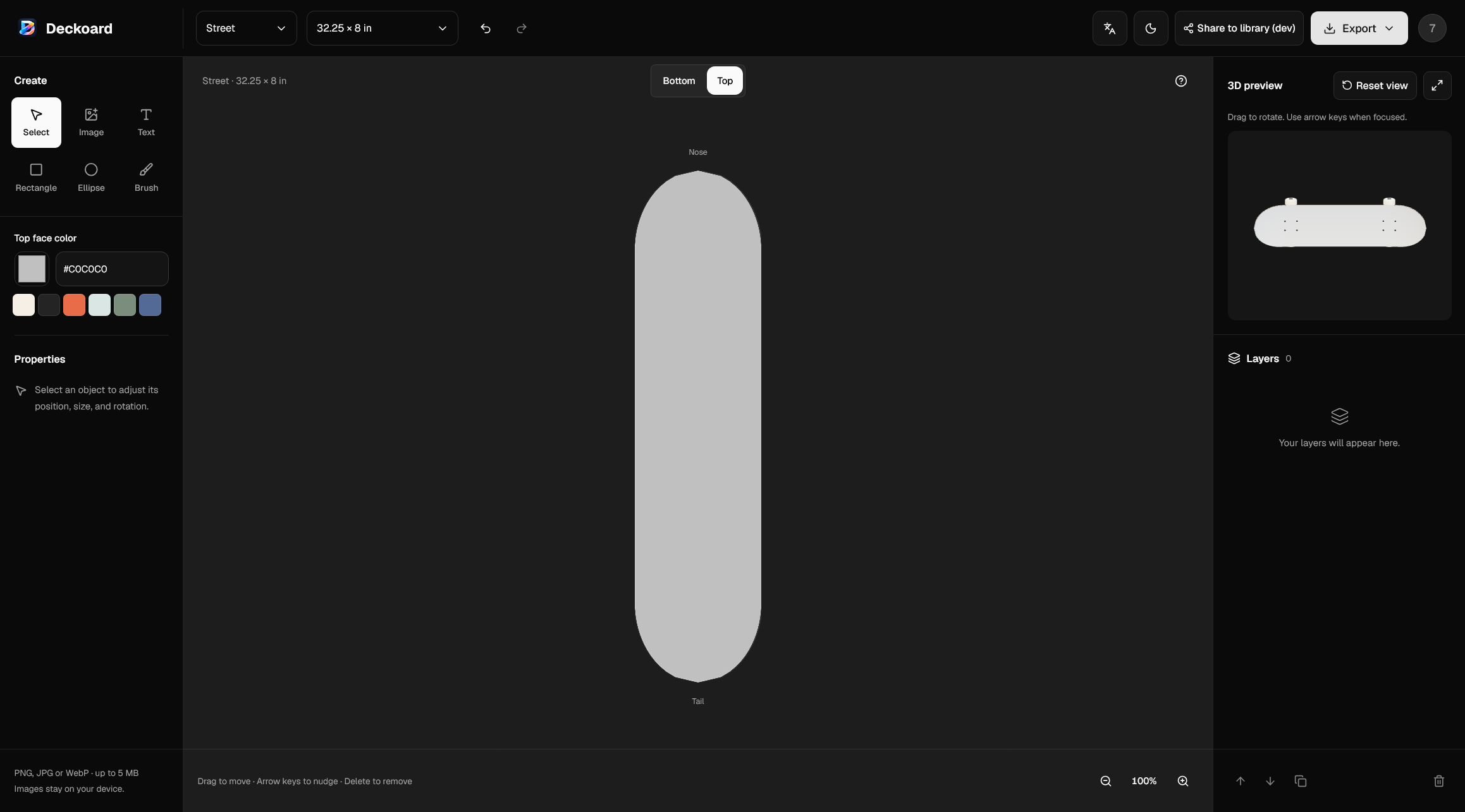
The editor treats the bottom and top faces as separate designs. Use the Bottom/Top switch above the canvas; each face keeps its own layers and base color.
A workable order is:
- Set the deck base color or top face color.
- Add large rectangles, ellipses, or image blocks.
- Add text and smaller accents.
- Use the Layers panel to rename, hide, reorder, duplicate, or delete objects.
Keep the grip side simple. A name, a small mark, or a single color often reads better on the top face than a full illustration, because grip tape and hardware break up the surface. The 3D preview also keeps the grip texture under the artwork, so you can judge how visible the design will be.
Step 3: Add Images, Text, Shapes, and Brush Strokes
The Create panel holds the manual tools:
- Image imports a local file. Images are decoded on your device and are not uploaded to an account.
- Text adds editable copy with size, color, position, and rotation controls.
- Rectangle and Ellipse create solid shapes for bands, blocks, and accents.
- Brush draws freehand marks; each stroke becomes its own layer.
- Select moves, resizes, and rotates an object.
Useful controls:
- Drag to move an object. Arrow keys nudge it by one unit; Shift+Arrow moves it by ten.
- Delete or Backspace removes the selected object.
- V selects, B activates the brush, T adds text, and Ctrl/Cmd+Z undoes.
- Center guides appear when an object snaps to the middle of the deck.
- The editor keeps up to 50 undo steps.
Design for the deck, not the rectangle. Keep important text away from the nose and tail curves, use a transparent PNG for logos, and check the composition at a small zoom level. If the idea disappears at thumbnail size, it will probably disappear on a moving board too.
Step 4: Check the Graphic in the 3D Preview
The 3D preview updates as you edit. Drag to rotate the board, use the arrow keys when the preview is focused, and use Reset view to return to the starting angle.
Switch between Bottom and Top to inspect both faces. Check the nose, tail, and edges for text that runs off the deck or shapes that look unbalanced from an angle. The preview is for shape and placement, not color proofing: screen colors and printed ink can differ, so ask your printer for a proof if color accuracy matters.
On smaller screens, use the Edit and Preview tabs to switch views.
Step 5: Export the Right PNG for Your Project
Open the Export menu and choose the output that matches the job.
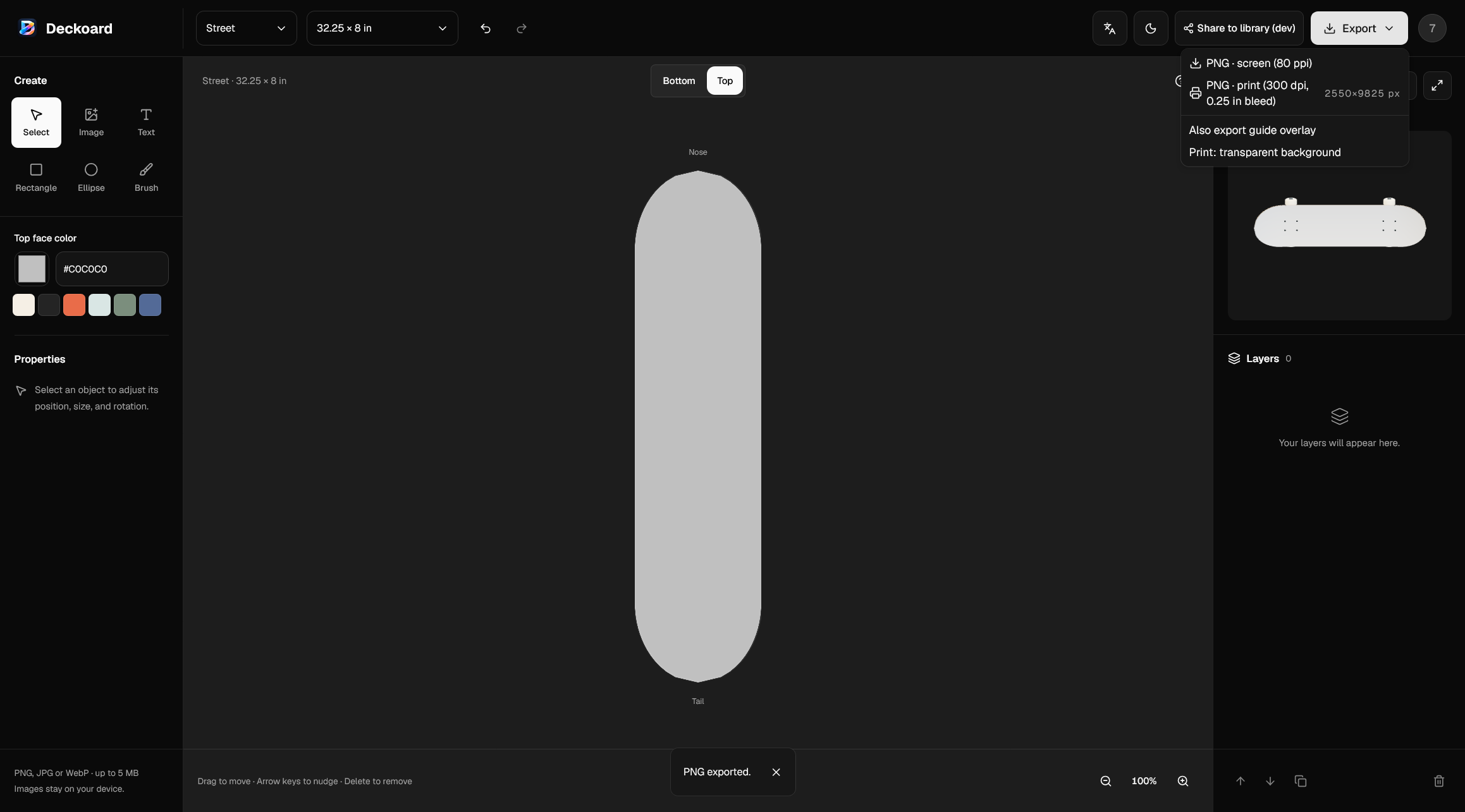
| Output | What it produces | Best for |
|---|---|---|
| PNG · screen (80 ppi) | A design-resolution PNG with the deck outline only and transparency outside the board | Mockups, social posts, client review |
| PNG · print (300 dpi, 0.25 in bleed) | A print PNG from the current board's production template, with optional guide overlay and transparent background | Print shops, deck makers, and wrap installers |
The export uses the face you are viewing. Export the bottom, switch to the top, and export again if you need both. File names include the deck size, and top-face files add a -top suffix.
The print export is the closest option to print-ready deck graphics in the editor, but it writes sRGB PNG only. It is not a manufacturer die-line, a CMYK conversion, or a guarantee that the file matches a specific printer's template. If your printer requires CMYK or a supplier-specific cut line, convert the file or ask for their template before production. The default print template uses a 0.5 in safe inset; keep critical text inside that area. For a 32.25 × 8 in Street deck, the default print export is 2,550 × 9,825 px.
For a deck wrap design, confirm the same bleed and background requirements with the installer. Export before you leave; the browser warns that the design is not saved.
Common Mistakes with Custom Skateboard Deck Graphics
- Designing a rectangle. The deck outline cuts the corners; place text and logos for the shape, not the bounding box.
- Upscaling a small image. A 400 px logo will not become print-ready at 300 dpi. Start with a larger source file.
- Ignoring the nose and tail. Curves crop artwork faster than most flat mockups suggest.
- Treating the template as a die-line. Confirm the printer's cut file, bleed, and color space.
- Forgetting the top face. If the grip side will be visible, give it a deliberate design instead of leaving the default.
- Closing the tab first. Designs are not saved; export both faces before navigating away.
FAQ
Do I need an account or AI to design a deck?
No account is needed to open the editor. AI generation is listed as a future direction, but it is not available in the current editor; the manual tools are the working workflow.
Can I upload my own artwork?
Yes. The editor accepts PNG, JPG, and WebP files up to 5 MB and 24 megapixels. Images stay on your device.
Does Deckoard print skateboards or sell wraps?
No. It exports PNG files that you can take to a print shop, deck manufacturer, or vinyl wrap installer.
What file should I send to a printer?
Start with the print PNG at 300 dpi with 0.25 in bleed, then confirm the printer's CMYK, die-line, material, and color requirements. The editor's export is artwork, not a manufacturing-ready template.
Are my designs saved?
No. Designs are not saved when you leave the page. Export the bottom and top faces you need before closing the tab.
Conclusion
Custom skateboard deck graphics are easier to judge on a 3D board than on a flat canvas. Choose the right shape, build the bottom and top faces separately, inspect the nose and tail in the preview, and export the screen or print PNG that matches your next step. When you are ready to try the workflow, open the Deckoard editor and start with a blank deck.